


Zip and postal code zones
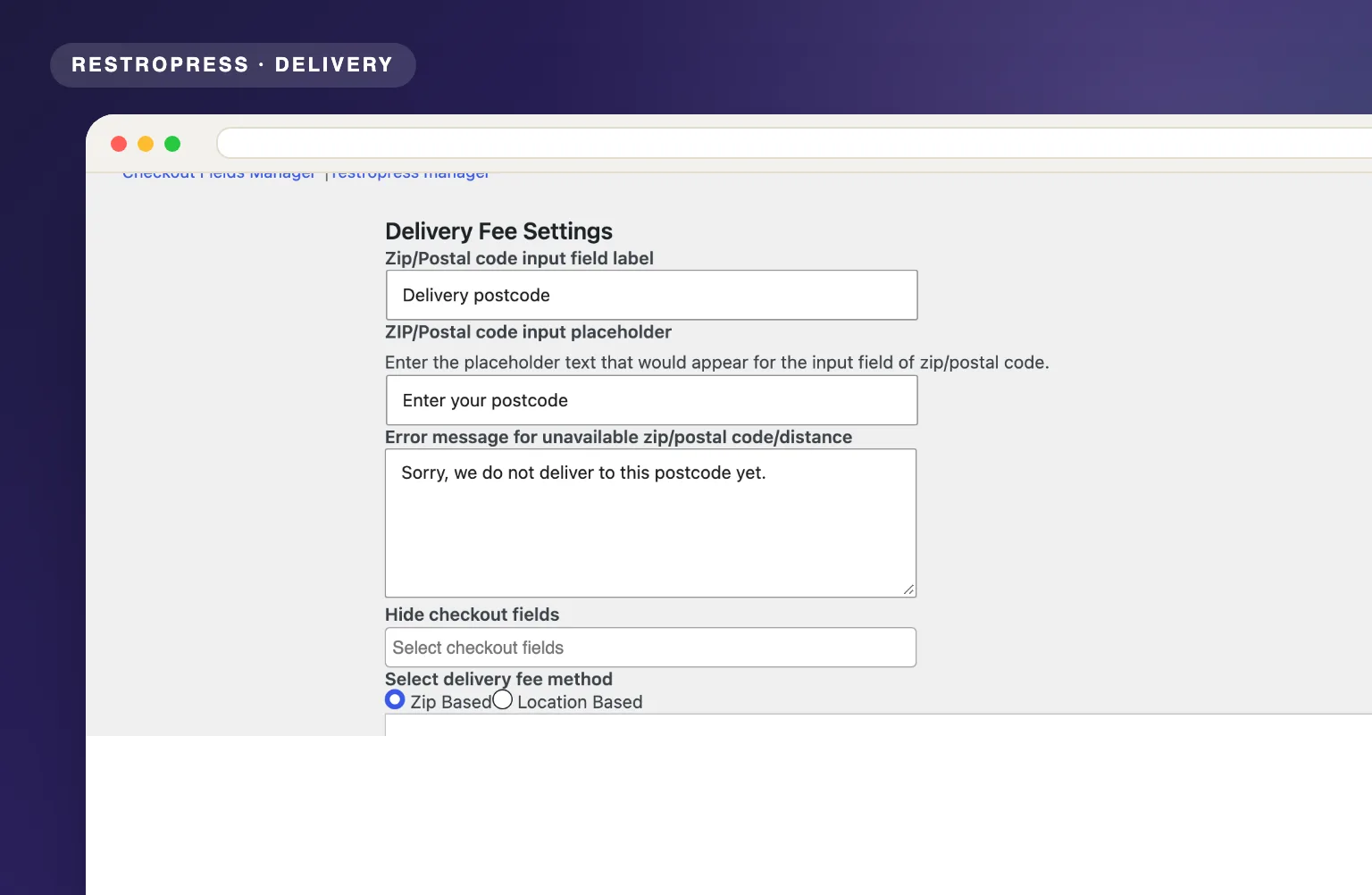
List the postal codes you deliver to, grouped into zones. Wildcards such as 606* cover every code that starts with 606.

Charge the right delivery fee for every order, automatically. Define zones by postal code or by driving distance from your store, each with its own fee, free-delivery threshold and minimum order.
Included in Starter, Professional, Business, AgencyOnly need this one? Buy it on its own from $49 / year
 RESTROPRESS · DELIVERY
WHAT DELIVERY ZONE AND FEES ADDS
List the postal codes you deliver to, grouped into zones. Wildcards such as 606* cover every code that starts with 606.
Charge by driving distance from your store in km or miles, using ranges such as 0-5 and 5-10, measured with the Google Distance Matrix.
In distance mode customers pick their address from Google Places suggestions, and the street, city and postcode fields at checkout are filled in for them.
Set a different delivery charge for every postal code group or distance range.
Require a minimum order value before an address in that zone can check out, with an error message you can customize.
Waive the fee above a basket value, set globally or overridden per zone.
Addresses outside every zone are refused for delivery with your own message, on the menu popup and again at checkout.
With the Multilocation extension, set separate distance ranges and fees for each branch and share one Google Maps API key.
MAKE IT YOURS
Define where you deliver and what it costs once. Delivery Zone and Fees applies the right fee to every order from then on.
Get setup guidanceGo to RestroPress > Settings > General > Delivery Fee and pick Zip Based or Location Based. For Location Based, paste your Google Maps API key and set your store location on the map.
Click Add New Fee for each postal code group or distance range, then enter the delivery fee, free-delivery amount and minimum order amount. Write the message shown to addresses you do not cover.
Customers enter a postal code or pick their address when they choose delivery. RestroPress matches it to a zone, adds the Delivery Fee line to the cart and re-checks it when the order is placed.
PLANS & REQUIREMENTS
DELIVERY EXTENSION
Compare the complete feature list to see which plan fits the rest of your setup.
1 WEBSITE
$199/ year
5 WEBSITES
$429/ year
15 WEBSITES
$799/ year
30 WEBSITES
$1,499/ year
BUY THIS EXTENSION ONLY
Yearly licence, cancel any time. Pick how many websites you run.
Licence key and download appear in your account right after checkout. Includes updates and support for this extension.
QUESTIONS, ANSWERED
CONTINUE EXPLORING

Powered by Google Maps API, customers type a few characters and select their full address from a smart suggestion list. Fewer errors, faster checkout.
Included in Basic and all paid plansView extensionYOUR NEXT DIRECT ORDER STARTS HERE
Explore the ordering experience, then choose the tools your team needs.