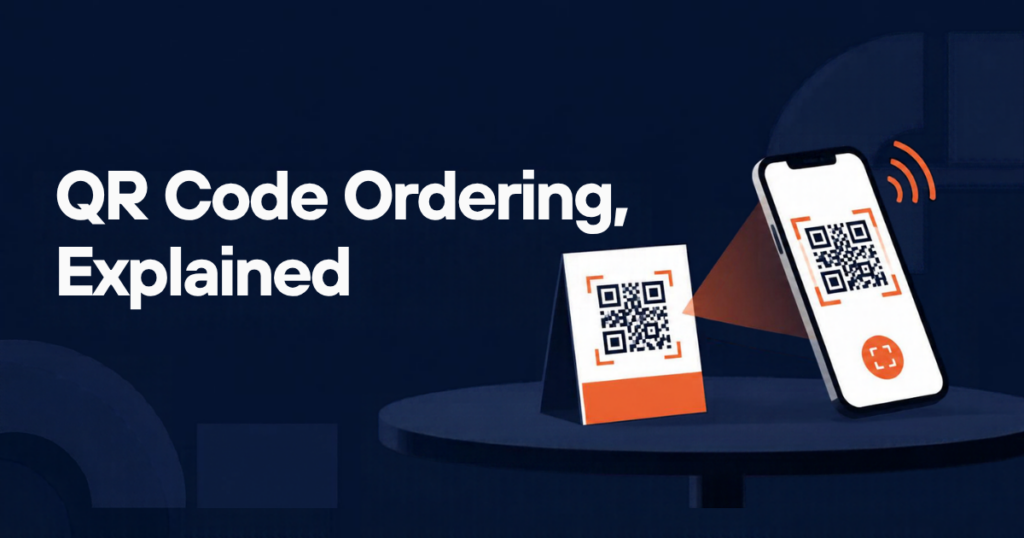
A QR code ordering system lets guests scan a code on the table, see your menu on their phone, order and pay without waiting for a server to come round. It went mainstream during the pandemic and stayed because it works: fewer trips to the table, faster second rounds, and orders that go straight to the kitchen as typed by the customer. This guide explains how QR code table ordering works end to end, what you need, where it fits and where it does not, and how to set it up on your own website.
How a QR code ordering system works
The customer side is simple, and that is the point.
- A guest sits down and scans the QR code on the table tent or sticker with their phone camera. No app to download.
- The code opens your menu in the phone’s browser, already linked to that table number.
- They browse, pick items and options, and add to a basket. Others at the table can scan the same code and order on their own phones.
- They place the order and either pay on the phone or choose to pay at the end.
- The order appears in the kitchen with the table number on it. The guest can see its progress on their phone and call a waiter from the same screen if they need something.
On the restaurant side, the moving parts are: a menu that lives on your website, a QR code per table that encodes the menu link plus the table ID, a screen or printer where orders arrive, and a way for staff to update status and respond to requests.
What you need to set it up
- An ordering system that supports dine-in. Ordinary online ordering assumes a pickup time or a delivery address. Table ordering needs a table number instead, and a “pay later” option. In RestroPress this is the Dine In feature, included in the Business and Agency plans.
- A QR code per table. The system generates these; you print them on table tents, stickers or the menu itself. Laminate them, because they get wet.
- Somewhere for orders to land. A tablet running the Order Tracking app, a kitchen display screen, or a thermal printer. For a busy kitchen, a Kitchen Display System that shows tickets with timers and lets cooks bump them is the comfortable option.
- Decent Wi-Fi or mobile signal in the dining room. Guests use their own data, but a basement restaurant with no signal needs guest Wi-Fi.
- A payment setup that handles both pay-now (card, Apple Pay, Google Pay via Stripe) and pay-at-the-end if you offer it.
- Staff who understand the flow. Servers still greet, advise, bring drinks and handle problems. They just do not have to take the order.
Where QR code table ordering works well
- Casual and fast-casual dining, where the alternative is queueing at a counter.
- Pubs, bars and beer gardens: a second round ordered from the table without finding a server is the use case that sells itself.
- Food halls and multi-vendor venues, where one table may order from several kitchens.
- Cafés with limited staff during peaks.
- Hotel room service and poolside, where the “table” is a room or a lounger.
- Large groups, where everyone ordering and paying for their own items avoids the bill-splitting ordeal.
Where it does not, and how to handle it
QR ordering is not right for every room. In fine dining the server’s recommendation is part of the product, and a phone on the table detracts from it. Older guests, or anyone without a smartphone, need a paper menu and a person to take their order; keep both available and never make the QR code the only option. Some guests simply find it impersonal. The restaurants that do this well treat QR ordering as an extra lane, not a replacement: the code is there for people who want it, the server is there for people who do not, and the kitchen sees the same ticket either way.
Two practical warnings. First, QR codes get swapped by pranksters and, occasionally, by fraudsters who stick a code linking to a fake payment page over yours; check tents regularly and use a design that is obviously yours. Second, if you allow pay-at-the-end, you need a clear process for closing the table so nobody walks out with an open tab.
Menu design for phones
A menu that was designed for A4 rarely reads well on a phone. A few things make a real difference:
- Short category names and a sticky category bar so guests can jump to Drinks.
- One good photo per best-seller. Not every item needs one.
- Options that are easy to tap: size, spice, sides, “no coriander”.
- Dietary labels (vegan, gluten-free, allergens) on the item, which saves the server a trip and reduces mistakes.
- Upsell prompts at the right moment: “Add a side?” when a main is added; “Another round?” after a drink order is completed.
- A visible “Call waiter” button, so the phone never feels like a wall between guest and staff.
Setting up QR ordering on your own website with RestroPress
Because RestroPress runs on your own WordPress site, QR table ordering uses the same menu as your pickup and delivery ordering. You maintain one menu and one set of prices, and dine-in orders sit in the same order list as everything else.
- Install the RestroPress plugin and set up your menu, if you have not already.
- Activate the Dine In extension (Business plan and above; see pricing) and enable dine-in as an order type.
- Create your tables. Each gets its own QR code; download and print them.
- Decide the payment rule: pay on the phone, pay at the end, or let the guest choose.
- Set up where orders appear. Start with the Order Tracking app on a tablet; add the Kitchen Display System and the Waiter app if the volume justifies it. The extensions page lists all of them.
- Run a service with staff only. Order from every table, check the table number on each ticket, test “Call waiter”, test closing a table.
- Put the tents out. For the first week, have servers mention the code when they greet the table, and keep paper menus handy.
The RestroPress documentation covers each step in detail.
Measuring whether it is working
Watch three numbers for the first month: the share of tables that order by QR, average spend per head on QR tables versus server-taken tables, and the time from seating to first order. If spend per head is up and time to first order is down, keep going. If QR take-up is low, the usual culprits are a code that is hard to find, a slow-loading menu, or staff who are not mentioning it. All three are cheap to fix.
Frequently asked questions
Do customers need to download an app to use QR code ordering?
No. The QR code opens your menu in the phone’s web browser. Every modern phone camera reads QR codes without extra software. Guests who prefer not to scan can order from a server as usual.
Can guests at the same table order separately and pay separately?
Yes. Each guest scans the same table code and orders from their own phone. The kitchen sees the orders grouped by table; payment can be per order on the phone, or settled together at the end depending on how you configure it.
How much does a QR code ordering system cost?
With RestroPress, dine-in QR ordering is part of the Business plan (€799/year for up to 15 websites) and the Agency plan, with no commission or per-order fee. On top of that you need a WordPress site and hosting, a tablet or printer for the kitchen, and your normal card-processing fees. Hosted QR ordering platforms typically charge a monthly fee per location and sometimes a per-order fee, so compare the yearly totals for your volume.