Braintree

Process credit and debit card payments through your Braintree account with Hosted Fields, optional saved cards, 3D Secure and immediate settlement built for food ordering.

Free · no plan needed
RestroPress Braintree product visualRESTROPRESS · PAYMENTS
Saved cards and instant settlement through your Braintree account.

WHAT BRAINTREE ADDS

Payment choices for your checkout.

01

Cards through Braintree Hosted Fields

Accept Visa, Mastercard and American Express on your own checkout page. Card number, name, expiry and CVC are entered in Braintree Hosted Fields and tokenized in the browser, so card data never touches your server.

02

Saved cards, with the customer in control

Turn on the Saved Cards setting and logged-in customers can tick a box to store their card in the Braintree vault. On their next order they pick the saved card instead of typing it again.

03

3D Secure with liability shift control

Enable 3D Secure to verify eligible cards before the order is submitted, and optionally Require 3D Secure liability shift so payments without a shifted liability are rejected.

04

Immediate settlement

Every transaction is submitted for settlement as soon as Braintree authorizes it, so there is nothing to capture by hand.

05

Webhooks keep orders in sync

Add the Webhook URL from the settings to your Braintree Control Panel. Settled and disbursed notifications keep the order paid, declined, failed and voided notifications mark it failed, and a Test Braintree Webhook Challenge button checks your keys.

06

Sandbox and production

RestroPress Test Mode switches the extension between the Braintree sandbox and production environments, so you can test with sandbox credentials before going live.

MAKE IT YOURS

From setup to service.

Four steps from a Braintree account to verified card payments on your checkout.

Get setup guidance
  1. 01

    Create a Braintree account

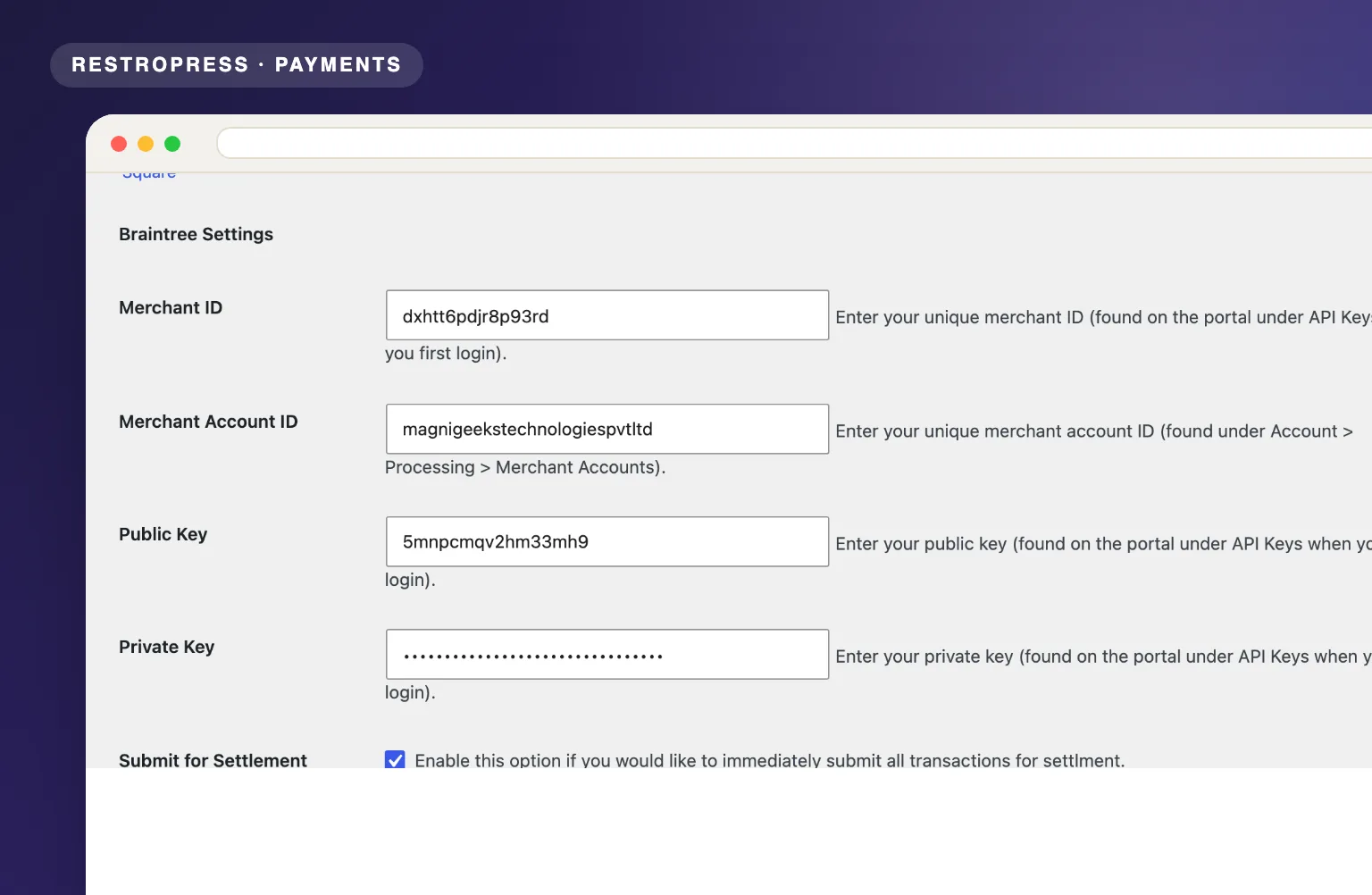
    Sign up at braintreepayments.com and, in the Control Panel, copy your Merchant ID, Public Key, Private Key and a Tokenization Key for both sandbox and production.

  2. 02

    Configure in RestroPress

    Open RestroPress, Settings, Payment Gateways, Braintree and enter the Merchant ID, Public Key, Private Key and Tokenization Key. Add a Merchant Account ID if you use more than one, then switch on 3D Secure and Saved Cards if you want them.

  3. 03

    Add the webhook

    Copy the Webhook URL from the settings into your Braintree Control Panel webhooks, then use Test Braintree Webhook Challenge to confirm your keys answer the verification challenge.

  4. 04

    Test, then go live

    With RestroPress Test Mode on, place an order using Braintree sandbox test cards and check the transaction ID on the order. Turn Test Mode off and enter production credentials to start taking real payments.

PLANS & REQUIREMENTS

The right tool. The right plan.

PAYMENTS EXTENSION

Free · no plan needed

Free for every RestroPress website. Download it below, no plan needed. Paid plans add the premium extensions and priority support.

FREE EXTENSION

Braintree is free. No plan required.

Download it now; enter your email at checkout and the file is saved to your RestroPress account for future updates.

QUESTIONS, ANSWERED

A few things to know.

Do I need an SSL certificate?
Yes. Braintree only processes card payments from pages served over HTTPS. Most hosts include a free SSL certificate, so this is usually a one-time setting on your hosting panel.
Can customers save their cards?
Yes, when you enable the Saved Cards setting. Logged-in customers see a "Save this card securely with Braintree for future orders" checkbox; if they tick it, the card is stored in the Braintree vault, not on your server, and offered as a saved payment method on their next order. Guests and customers who do not opt in are never vaulted.
Can I test before going live?
Yes. Switch RestroPress to Test Mode and the extension talks to the Braintree sandbox with the credentials you entered. Use Braintree sandbox test cards, check the order and transaction ID, then turn Test Mode off and enter your production keys.
Can I refund an order from RestroPress?
No. The extension does not send refund or void requests. Refund the transaction in your Braintree Control Panel; the Braintree transaction ID is stored on the RestroPress order so you can find it quickly, and a voided or settlement-declined webhook will mark the order failed.
Which currencies are supported?
The extension charges the Braintree merchant account you select with Merchant Account ID (or your default account), and that account has one settlement currency. Set your RestroPress store currency to the same currency. For several currencies you would need separate Braintree merchant accounts and a separate store currency per site.
Does it support PayPal, Apple Pay or Google Pay through Braintree?
No. This extension covers card payments through Braintree Hosted Fields only. PayPal, Venmo, Apple Pay and Google Pay are not added, even if they are enabled in your Braintree account.
Is Braintree available in my country?
Braintree is available to businesses in the US, Canada, Australia, much of Europe and several Asia-Pacific markets. Visit braintreepayments.com for the current list. If Braintree does not cover you, RestroPress also offers Mollie, Stripe and other free gateways.


YOUR NEXT DIRECT ORDER STARTS HERE

See how it works for your restaurant.

Explore the ordering experience, then choose the tools your team needs.