


14 field types
Text, textarea, email, URL, dropdown, multi-select, radio, checkbox, date, file upload, hidden, HTML block, section break and repeatable field.

Add, reorder and customize extra checkout fields with a drag-and-drop builder. 14 field types, admin-only fields, file uploads and CSV export, no coding required.
Included in Professional, Business, AgencyOnly need this one? Buy it on its own from $49 / year
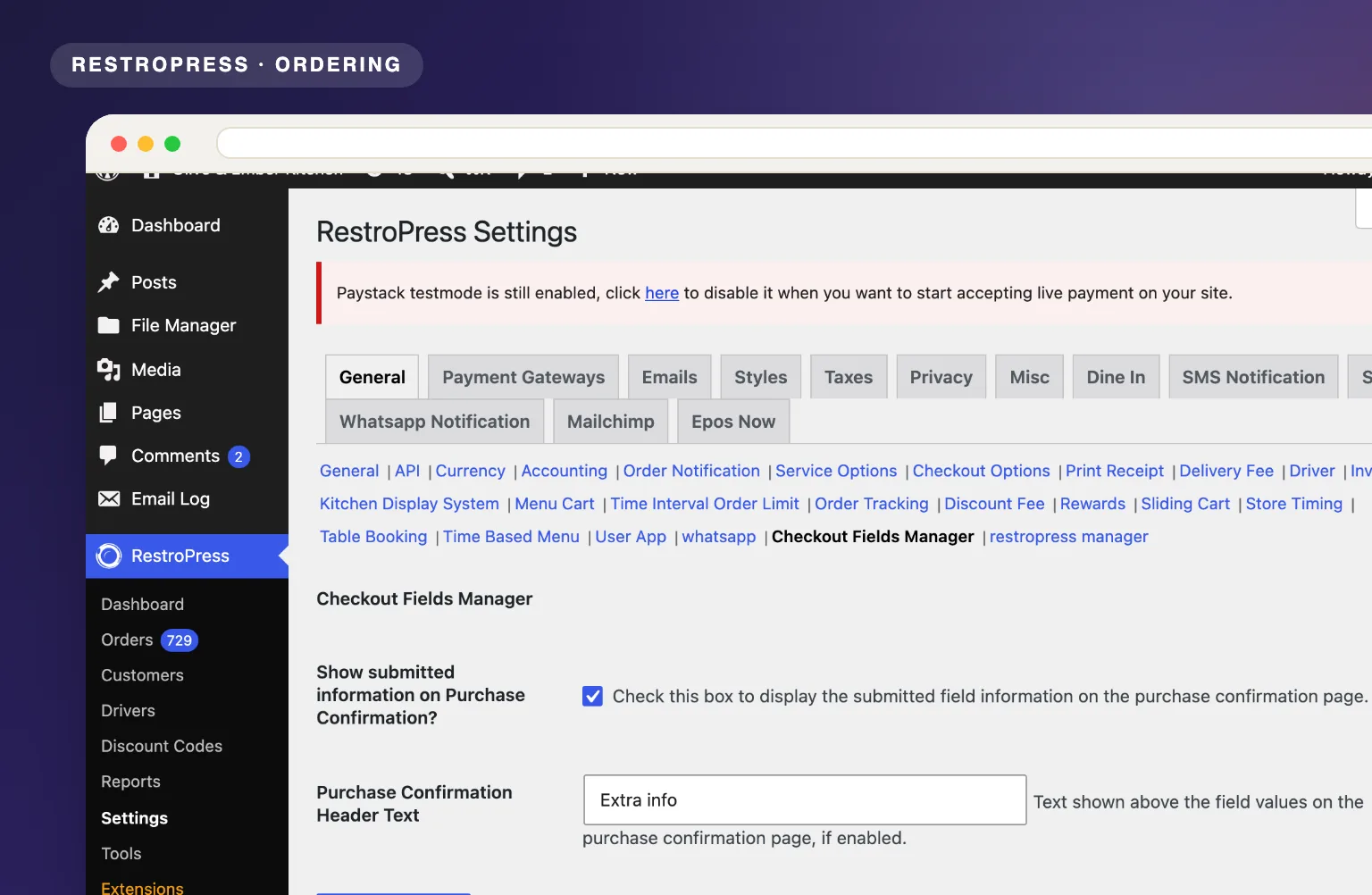 RESTROPRESS · ORDERING
WHAT CHECKOUT FIELDS MANAGER ADDS
Text, textarea, email, URL, dropdown, multi-select, radio, checkbox, date, file upload, hidden, HTML block, section break and repeatable field.
Reorder any field on the checkout page with a simple drag. No coding needed.
The form starts with First Name, Last Name and Email fields that you can relabel, reorder, add help text to or make optional.
Set each field as mandatory or optional based on what your workflow needs.
Show a field to customers or keep it admin-only, store the value per order or per customer account, and include or exclude it from CSV exports.
Place each custom field in the personal info section or the order details section of the checkout.
Let customers attach files at checkout, with a maximum size, a maximum number of files and an allowed-extension list per field.
Flag fields as personal data, include them in privacy exports, and choose to delete, anonymize or keep them when a customer asks for erasure.
Export your field set as a .json file, import it on another site, or reset the form to defaults from RestroPress Tools.
MAKE IT YOURS
Build the checkout form your restaurant needs in minutes, with no developer involved.
Get setup guidanceIn the WordPress admin, open RestroPress, Checkout Fields. The form editor lists your current fields on the left and the field types you can add on the right.
Click a field type to add it, drag to reorder, then set the label, meta key, placeholder, help text, required flag, section and visibility for each field.
Save the form and place a test order. Values appear in the order confirmation email, the admin order screen, the customer receipt and CSV exports.
PLANS & REQUIREMENTS
ORDERING EXTENSION
Compare the complete feature list to see which plan fits the rest of your setup.
5 WEBSITES
$429/ year
15 WEBSITES
$799/ year
30 WEBSITES
$1,499/ year
BUY THIS EXTENSION ONLY
Yearly licence, cancel any time. Pick how many websites you run.
Licence key and download appear in your account right after checkout. Includes updates and support for this extension.
QUESTIONS, ANSWERED
CONTINUE EXPLORING
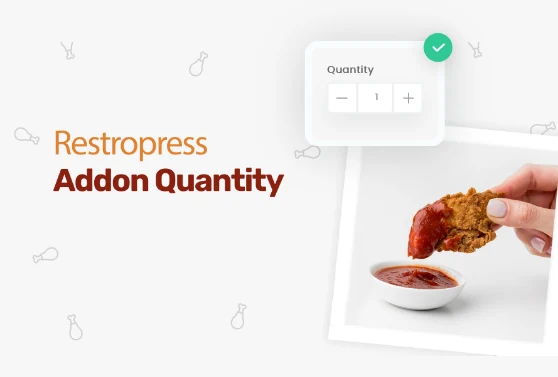
Add quantity controls to your food addons so customers can order two extra sauces, three toppings, or any other addon in the amount they actually want.
Included in Professional, Business, AgencyView extension
Add custom fees for packaging, payment surcharges, express delivery, gift wrapping, or any other service, as flat amounts or percentages, per order type.
Included in Professional, Business, AgencyView extension
Add a floating cart icon to your navigation menu so customers always see their order total and can jump to checkout from any page.
Included in Basic and all paid plansView extensionYOUR NEXT DIRECT ORDER STARTS HERE
Explore the ordering experience, then choose the tools your team needs.