PhonePe

Accept payments via PhonePe, Google Pay, BHIM, CRED, and Amazon Pay with intent-based deep linking that opens UPI apps directly on mobile for faster checkout.

Free · no plan needed
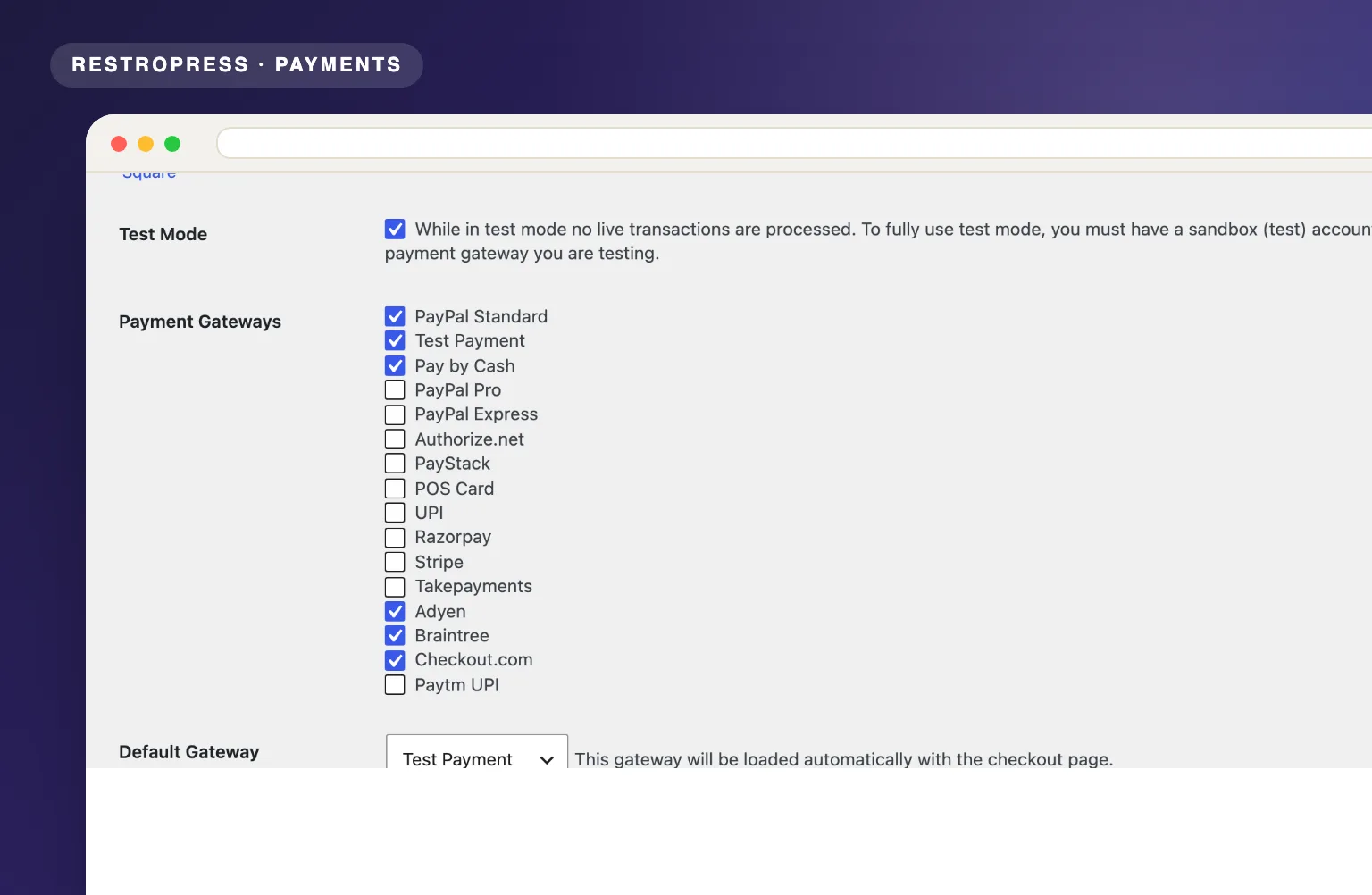
RestroPress PhonePe product visualRESTROPRESS · PAYMENTS
UPI-first checkout that opens the payment app on the customer's phone.

WHAT PHONEPE ADDS

The fastest UPI checkout on mobile.

01

UPI app intent and deep linking

On the PhonePe hosted checkout, UPI intent buttons open PhonePe, Google Pay, CRED, Amazon Pay, BHIM and SuperMoney directly on the customer's phone. Edit the list in the Enable UPI App Deep Links setting, or leave it empty to show every app PhonePe offers.

02

Cards and net banking

Keep Card and NetBanking keeps debit and credit cards and net banking available next to UPI on the same PhonePe checkout page.

03

Automatic status verification

When the customer returns, the extension calls the PhonePe order status API and marks the order paid or failed. Orders still pending are re-checked by WP-Cron after 2, 5 and 15 minutes.

04

Webhook integration

PhonePe checkout.order.completed and checkout.order.failed webhook events update the order even if the customer never returns to your site. The endpoint is protected by your Webhook Username and Webhook Password.

05

Retry control and payment expiry

Disable PhonePe Retry sends a failed attempt straight back to your checkout instead of a retry loop on PhonePe, and Payment Expiry Seconds (300 to 3600) sets how long the payment stays open.

06

UPI App Intent Mode

Production only (recommended) enables real app deep links on live checkout and blocks broken intent loops in sandbox. Always on and always off are available when you need them.

07

Sandbox and live environments

PhonePe Environment switches between Sandbox and Production, RestroPress Test Mode forces sandbox, and if the wrong environment is selected the plugin retries the other one once.

08

Custom payment message

The Payment Message setting shows your own note on the PhonePe checkout page, with an {order_id} tag for the RestroPress order number.

MAKE IT YOURS

From setup to service.

PhonePe is built for mobile UPI payments, and the four steps below get it live on your checkout.

Get setup guidance
  1. 01

    Create a PhonePe Business account

    Register at phonepe.com/business, complete verification and open Developer Settings in the PhonePe Business Dashboard to copy your Standard Checkout API credentials.

  2. 02

    Enter your credentials in RestroPress

    In RestroPress > Settings > Payment Gateways > PhonePe, choose a Credential Mode and enter Client ID, Client Version and Client Secret, or Merchant ID, Key Index and API Key if that is what your dashboard shows. Set PhonePe Environment to Sandbox while testing.

  3. 03

    Register the webhook

    Copy the webhook URL shown in the PhonePe settings into PhonePe Business Dashboard > Developer Settings > Webhooks, use the same Webhook Username and Webhook Password, and enable the checkout.order.completed and checkout.order.failed events.

  4. 04

    Go live and accept UPI payments

    Switch PhonePe Environment to Production and keep UPI App Intent Mode on Production only. Every order is confirmed by the PhonePe status API on return, by webhook, or by the WP-Cron re-check.

PLANS & REQUIREMENTS

The right tool. The right plan.

PAYMENTS EXTENSION

Free · no plan needed

Free for every RestroPress website. Download it below, no plan needed. Paid plans add the premium extensions and priority support.

FREE EXTENSION

PhonePe is free. No plan required.

Download it now; enter your email at checkout and the file is saved to your RestroPress account for future updates.

QUESTIONS, ANSWERED

A few things to know.

Is a PhonePe Business account required?
Yes. Register at phonepe.com/business, complete verification and copy the credentials from Developer Settings in the PhonePe Business Dashboard. Newer dashboards show Client ID, Client Version and Client Secret; older production dashboards show Merchant ID, Key Index and API Key. Credential Mode defaults to Auto detect and maps either set to PhonePe Standard Checkout.
Is SSL required?
Yes. PhonePe webhooks are only delivered to an HTTPS URL, and the hosted checkout should only be reached from a secure site. Enable an SSL certificate before switching PhonePe Environment to Production.
Which currency does it support?
INR only. The gateway stops the checkout if your RestroPress store currency is anything other than INR, and PhonePe requires a minimum payment of INR 1.
Which UPI apps are supported?
By default the PhonePe checkout shows intent buttons for PhonePe, Google Pay, CRED, Amazon Pay, BHIM and SuperMoney. Edit the Enable UPI App Deep Links setting to change the list, or leave it empty to show every app PhonePe offers, including Paytm. App deep links are enabled on production checkout only unless you change UPI App Intent Mode.
Does it work on desktop?
Yes. The customer is redirected to the standard PhonePe checkout page, where they can pay by UPI, card or net banking. App deep links are only used on phones, where they save the most time.
Can I test before going live?
Yes. Set PhonePe Environment to Sandbox or turn on RestroPress Test Mode, which forces sandbox. Test client IDs are detected automatically, and if the wrong environment is selected the plugin retries the other one once.
Can I refund an order from RestroPress?
No. The extension does not call the PhonePe refund API. Issue the refund from your PhonePe Business Dashboard, then mark the order refunded in RestroPress.
Does it work with the RestroPress DineIn app?
Yes. The extension registers rp-dinein/v1 REST endpoints so the DineIn app can create a PhonePe payment for a table order and verify its status, using the same credentials and settings.


YOUR NEXT DIRECT ORDER STARTS HERE

See how it works for your restaurant.

Explore the ordering experience, then choose the tools your team needs.